MiniClaw

Install MiniClaw

Your personal AI assistant. Runs locally on your Mac.

We don't have Apple's approval yet — we're working on it. We'll make this much easier soon!

Easiest way to install

  1. Press Cmd + Space to open Spotlight
  2. Type Terminal and press Enter
  3. Copy and paste this command, then press Enter:
bash <(curl -fsSL https://raw.githubusercontent.com/augmentedmike/miniclaw-os/main/bootstrap.sh)
Click to copy

Your browser will open automatically when it's done.

OR DOWNLOAD
1
Double-click the zip to unzip
You'll see Install MiniClaw appear in your Downloads.
Download installer
2
Double-click Install MiniClaw
macOS will show a warning — this is normal for apps not from the App Store. Click Done.
3
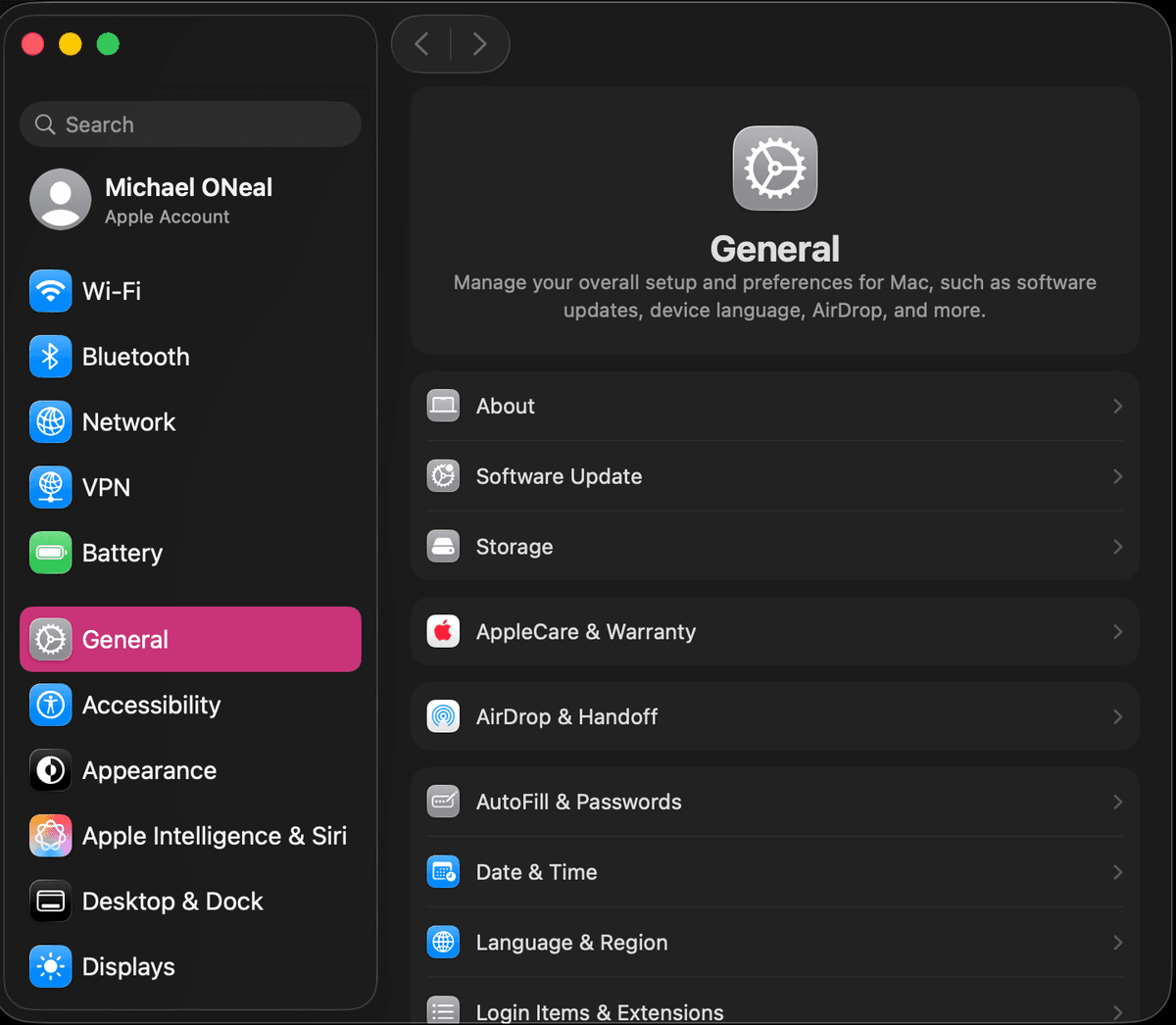
Open System Settings
Click the Apple menu → System Settings, then search for "priv" in the search box.
Open System Settings and search for priv
4
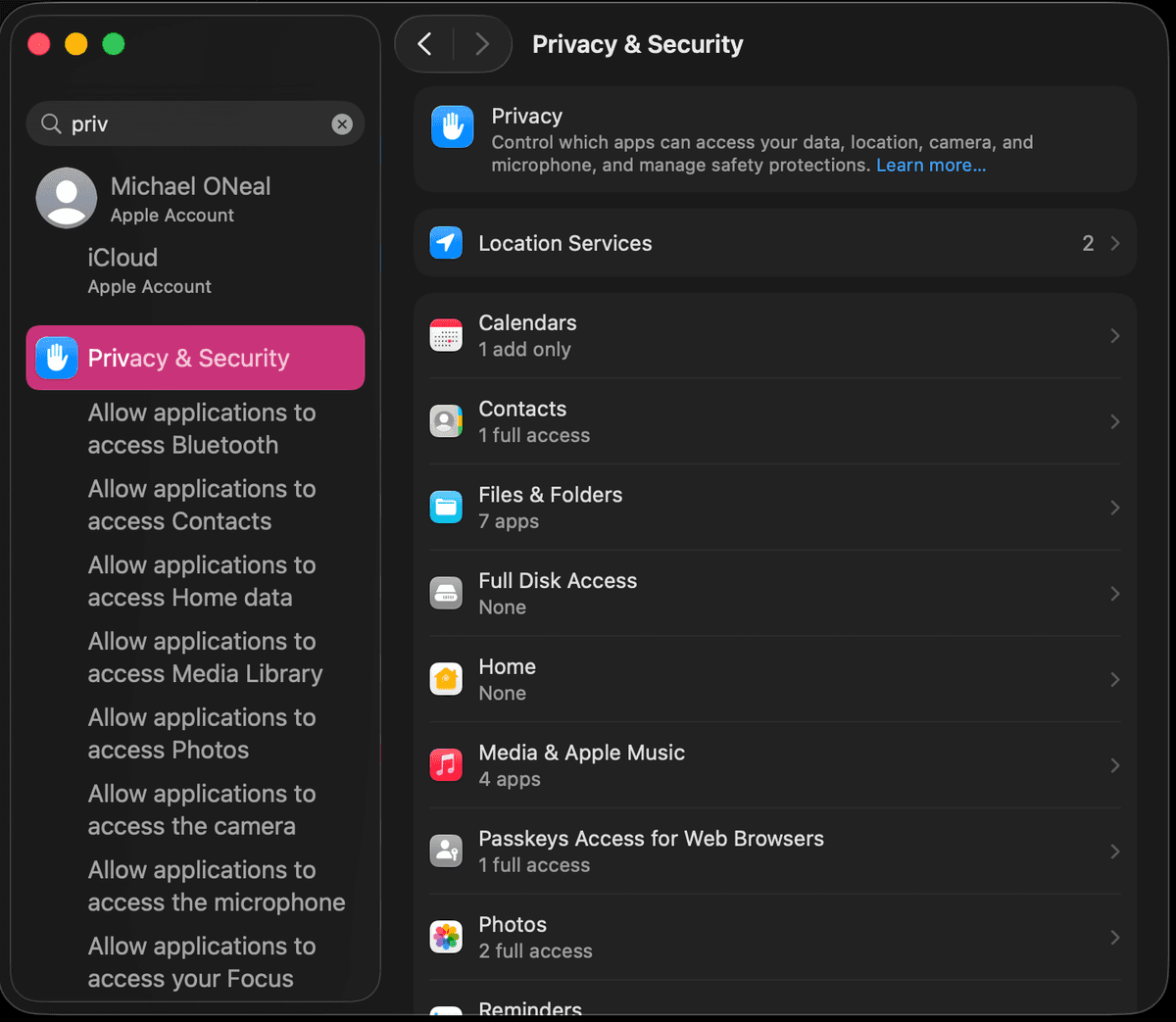
Go to Privacy & Security
Click Privacy & Security in the sidebar.
Privacy & Security in System Settings
5
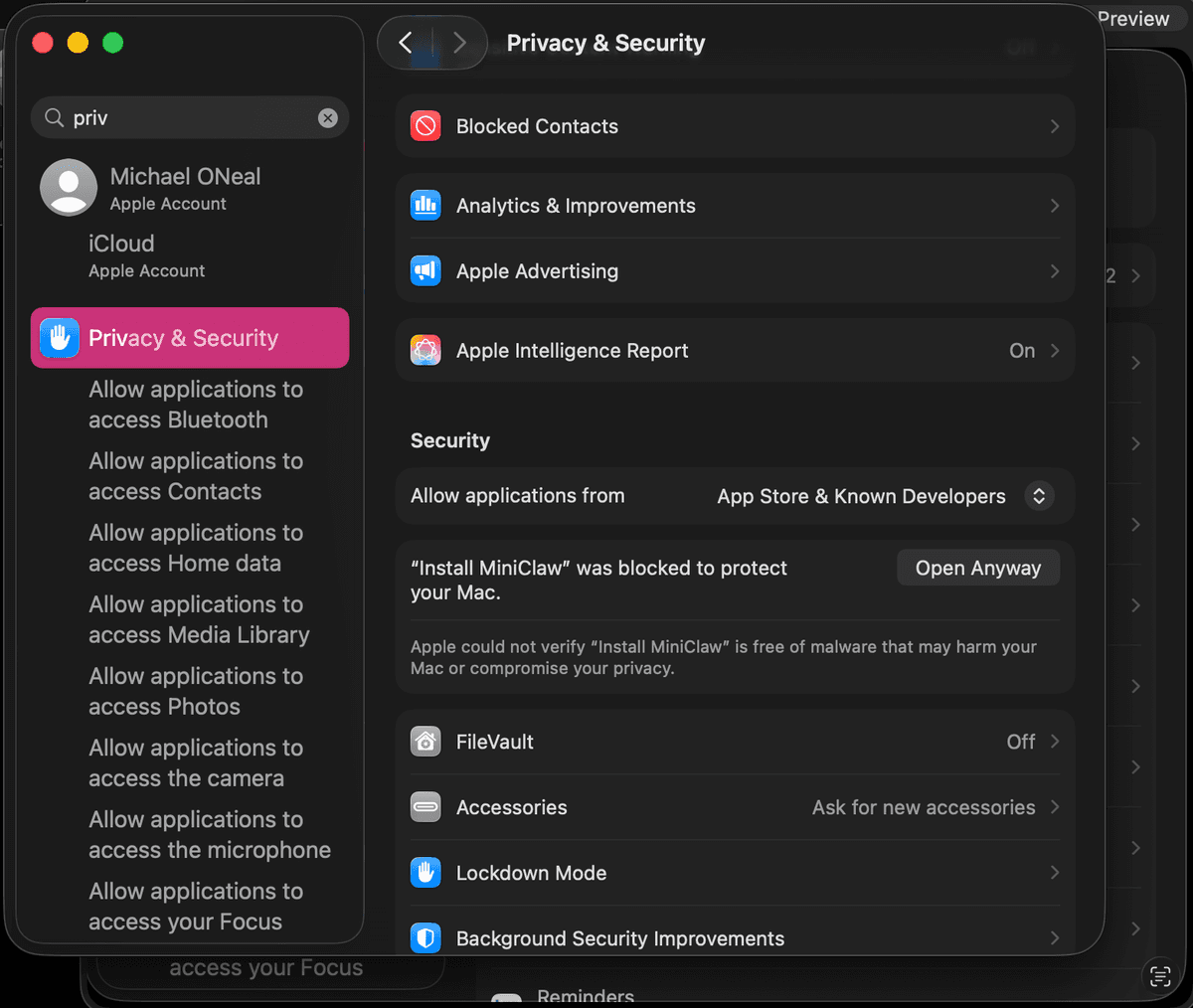
Scroll down to Security
Scroll down past the privacy sections until you see the Security heading.
Scroll down to Security section
6
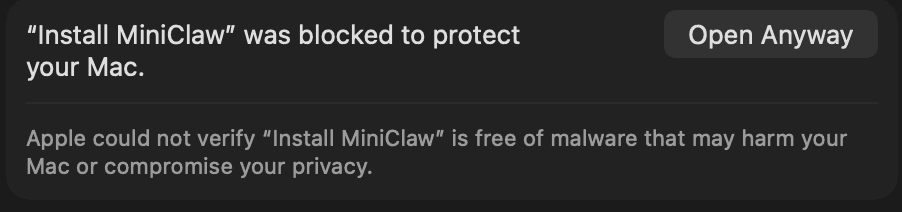
Click "Open Anyway"
You'll see "Install MiniClaw was blocked to protect your Mac." Click Open Anyway.
Click Open Anyway
7
Double-click Install MiniClaw again
Go back to your Downloads folder and double-click Install MiniClaw one more time. This time it will run.
8
Enter your Mac password
A dialog will ask for your password. Type it and click OK. Click Allow or Open on any other prompts until it finishes.

That's it!

MiniClaw will install itself and open in your browser. You only need to do this once.